How to use text to speech on iPhone and Android (and when to use an app)
How to use text to speech on iPhone and Android: the settings for Speak Selection, Live Speech, Select to Speak and TalkBack, plus when an app is better.
To use text to speech on iPhone, go to Settings > Accessibility > Read & Speak and turn on Speak Selection or Speak Screen, or turn on Live Speech to type and have your words spoken aloud. On Android, go to Settings > Accessibility > Select to Speak to have on-screen text read aloud, and Settings > Accessibility > Text-to-speech output to choose the voice, speed and pitch. For speaking your own words to other people every day, a dedicated app is often better.
Menu names change between OS versions. The iPhone steps are for iOS 26 and iOS 27, which use the same Read & Speak and Live Speech paths in Apple’s iPhone User Guide. The Android steps are for Android 16 on a Google Pixel, based on Google’s Android Accessibility Help; if your Pixel has already updated to Android 17, the names may differ slightly. Samsung and other brands differ, as noted below.
How to use text to speech on iPhone
Apple groups its reading features under Read & Speak. In iOS 26 this replaced the older name, Spoken Content, so if you’re on an older iPhone and can’t find Read & Speak, look for Spoken Content instead. If you get lost, search for the feature name in Settings.
Speak Selection: read aloud the text you highlight
- Open Settings and tap Accessibility.
- Tap Read & Speak.
- Turn on Speak Selection. You can also customise the highlight style and colour here.
- In any app, select some text, then tap Speak in the menu that appears.
Speak Screen: read the whole page aloud
- Go to Settings > Accessibility > Read & Speak.
- Tap Speak Screen and turn it on.
- Swipe down with two fingers from the top of the screen to start reading. You can also ask Siri to “Speak screen”.
A small controller lets you pause, change the speaking rate and skip forward or back, or use Speak on Touch to hear just the text you tap.
Change the voice, language and speed
In Settings > Accessibility > Read & Speak you can also choose Voices (voice and dialect), set a Default Language, turn on Detect Languages, drag the Speaking Rate slider and add Pronunciations for words the voice gets wrong.
Typing Feedback: hear what you type
In iOS 26, Settings > Accessibility > Keyboards & Typing > Typing Feedback speaks characters, whole words, auto-corrections or predictions as you type, which helps with spelling and proofreading.
Live Speech: type and have your words spoken to others
Live Speech is for people who can’t speak or are resting their voice: you type, tap Speak, and your iPhone says it aloud. Apple says it works in person and in FaceTime and phone calls.
- Go to Settings > Accessibility > Live Speech and turn it on.
- Choose a voice. You can use any system voice, or a Personal Voice if you’ve created one.
- To open it, triple-click the side button (or the Home button on older models). If you have more than one feature on your Accessibility Shortcut, tap Live Speech from the menu.
- Type your message and tap Speak.
Save frequent phrases, in categories, under Settings > Accessibility > Live Speech > Phrases. Live Speech isn’t available in every language.
How to use text to speech on Android
Android splits text to speech into features that read aloud (Select to Speak and TalkBack) and the text-to-speech engine that produces the voice for all of them.
Select to Speak: tap or drag to hear text
- Open Settings and tap Accessibility.
- Tap Select to Speak.
- Turn on the Select to Speak shortcut and choose how to start it: the on-screen Accessibility button or a two-finger swipe up (three fingers if TalkBack is on).
- Use the shortcut, then tap an item or drag your finger across several items to hear them. Or tap Play to hear everything on the screen.
While it reads, you can pause, skip and change the speed. Turn on Read in background in its settings to keep listening while you use other apps.
If Select to Speak isn’t in your Accessibility menu, it comes as part of Google’s Android Accessibility Suite app on Google Play, alongside TalkBack and the Accessibility Menu.
TalkBack basics
TalkBack is Android’s screen reader, designed mainly for people who are blind or have low vision. It changes how you control the phone, so practise when you have time.
- Turn it on: go to Settings > Accessibility > TalkBack and turn on Use TalkBack. If the volume key shortcut is set up, you can also hold both volume keys for a few seconds. With Google Assistant you can say “Hey Google, turn on TalkBack”.
- Tap once on something to hear what it is.
- Double-tap to activate the selected item.
- Swipe right to move to the next item.
- Drag with two fingers to scroll.
For occasional reading aloud, Select to Speak is less disruptive.
Text-to-speech output: choose the engine, voice and speed
- Go to Settings > Accessibility > Text-to-speech output.
- Choose your Preferred engine.
- Set the Language, Speech rate and Pitch.
- Tap Play to hear a short sample with your settings.
The Google text-to-speech engine
On most Android phones the default engine is Google’s, listed on Google Play as Speech Recognition & Synthesis. It powers reading aloud in Google Play Books, Google Translate and TalkBack, and the settings icon next to it lets you manage its voices. Google notes the engines on offer vary by device: Google’s, your manufacturer’s, or third-party engines from Google Play.
Samsung and other manufacturers
On Samsung Galaxy phones, Samsung gives the path as Settings > Accessibility > Text-to-speech, where you choose the engine (including Samsung’s own), language, rate and pitch. Other brands also regroup accessibility settings, so searching Settings for “text-to-speech” or “Select to Speak” is the quickest fix.
iPhone vs Android text to speech at a glance
| What you want | iPhone (iOS 26) | Android (Pixel, Android 16) |
|---|---|---|
| Read selected text | Speak Selection | Select to Speak |
| Read the whole screen | Speak Screen (two-finger swipe down) | Select to Speak, then Play |
| Full screen reader | VoiceOver | TalkBack |
| Hear what you type | Typing Feedback | TalkBack |
| Type and speak to others | Live Speech | Live Caption “Type responses during calls” (Pixel 6 and later, calls only) |
| Change voice and speed | Read & Speak settings | Text-to-speech output |
When a dedicated text to speech app is better
The built-in tools are free and genuinely useful for reading aloud. They fall short when text to speech is how you talk, not just how you read.
You want a natural, expressive voice
System voices have improved, but many still sound synthetic over a long conversation. Dedicated apps increasingly offer AI voices much closer to a real person, with more choice of age and accent. If the voice represents you to colleagues, shop staff or your doctor, that matters. Our guide to the best text to speech apps in 2026 compares the options.
You speak your own words aloud every day
Speak Selection and Select to Speak read text that’s already on screen. Live Speech lets you type to speak, but as an overlay you summon with a shortcut. If typing is how you communicate, a dedicated space helps: large text the other person can read, quick clearing after speaking, and speech that starts as soon as you tap. That’s the core of AAC (augmentative and alternative communication), which we explain in what is AAC?
You say the same things often
Saved phrases turn a typing job into one tap. Live Speech has a phrase list; a dedicated app can add favourites and categories so “Could you write that down for me, please?” or “I’m not able to speak at the moment” are always one tap away.
Where MyVoice fits
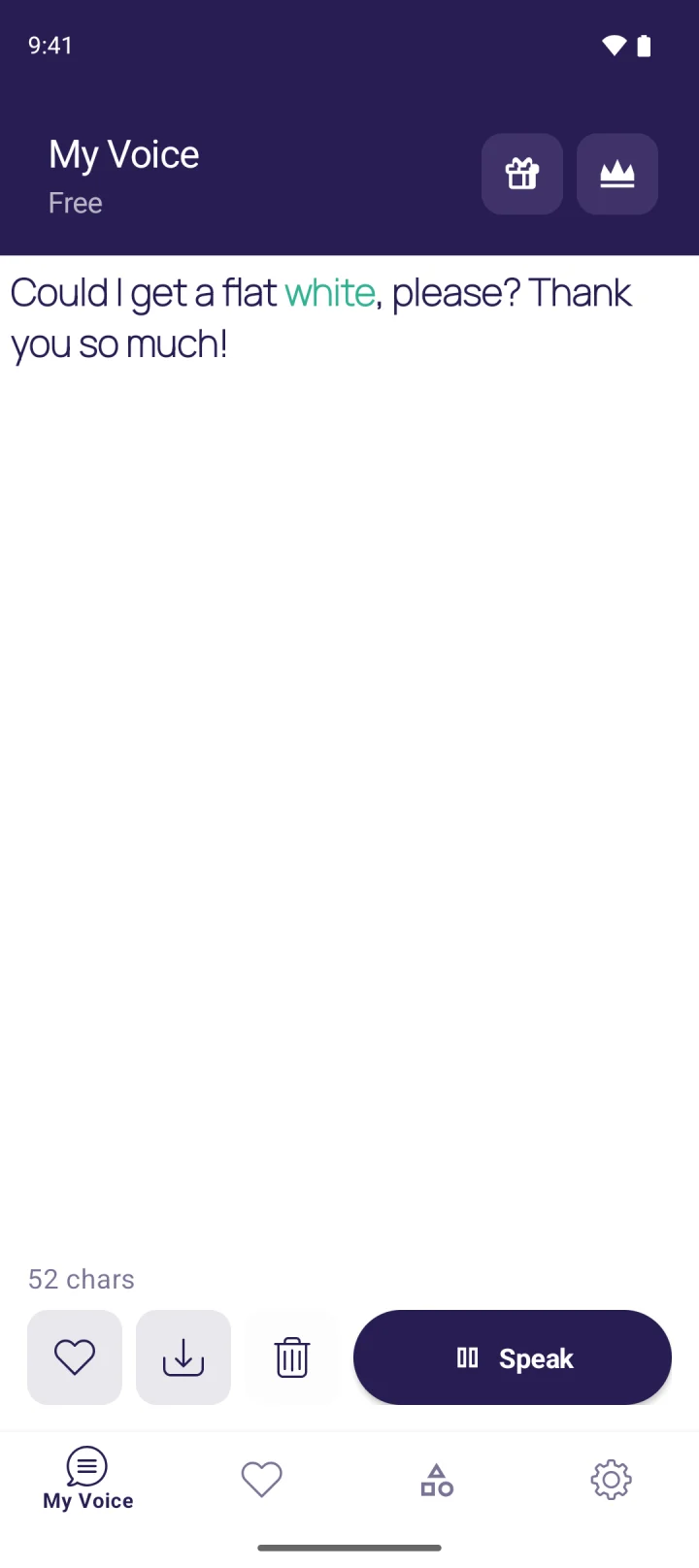
MyVoice is an AAC text to speech app for Android (coming soon to the App Store for iPhone). You type, tap Speak, and it’s read aloud in a natural voice with live word highlighting. Choose from 278 natural AI voices across 15 languages, filtered by gender, age and accent, or on-device voices that work offline. Save phrases, favourites and categories for one-tap speaking. MyVoice also works with TalkBack.
The free plan includes on-device voices, 3,000 AI voice characters a month, saved phrases and speak as you type. Paid plans start at $2.99 a month (pricing). You can hear every voice on our homepage before installing anything. For more no-cost options, see our guide to free text to speech.
FAQ
How do I turn on text to speech on iPhone?
Go to Settings > Accessibility > Read & Speak (called Spoken Content before iOS 26) and turn on Speak Selection or Speak Screen. To type and have your own words spoken aloud, turn on Settings > Accessibility > Live Speech.
How do I turn on text to speech on Android?
Go to Settings > Accessibility > Select to Speak and turn on the shortcut. Then use the shortcut and tap or drag over text to hear it. Change the voice under Settings > Accessibility > Text-to-speech output.
Why can’t I find text to speech settings on my Samsung phone?
Samsung uses its own settings layout. Try Settings > Accessibility > Text-to-speech, or search Settings for “text-to-speech”. If Select to Speak is missing, install Android Accessibility Suite from Google Play.
Can I use text to speech during a phone call?
On iPhone, Live Speech can speak your typed words in phone and FaceTime calls. On Google Pixel 6 and later, Live Caption’s Type responses during calls setting reads your typed replies aloud to the caller.
Download MyVoice
Try for free
Natural AI voices, saved phrases, and full accessibility support on iOS and Android.